Rackside
Clients and intake
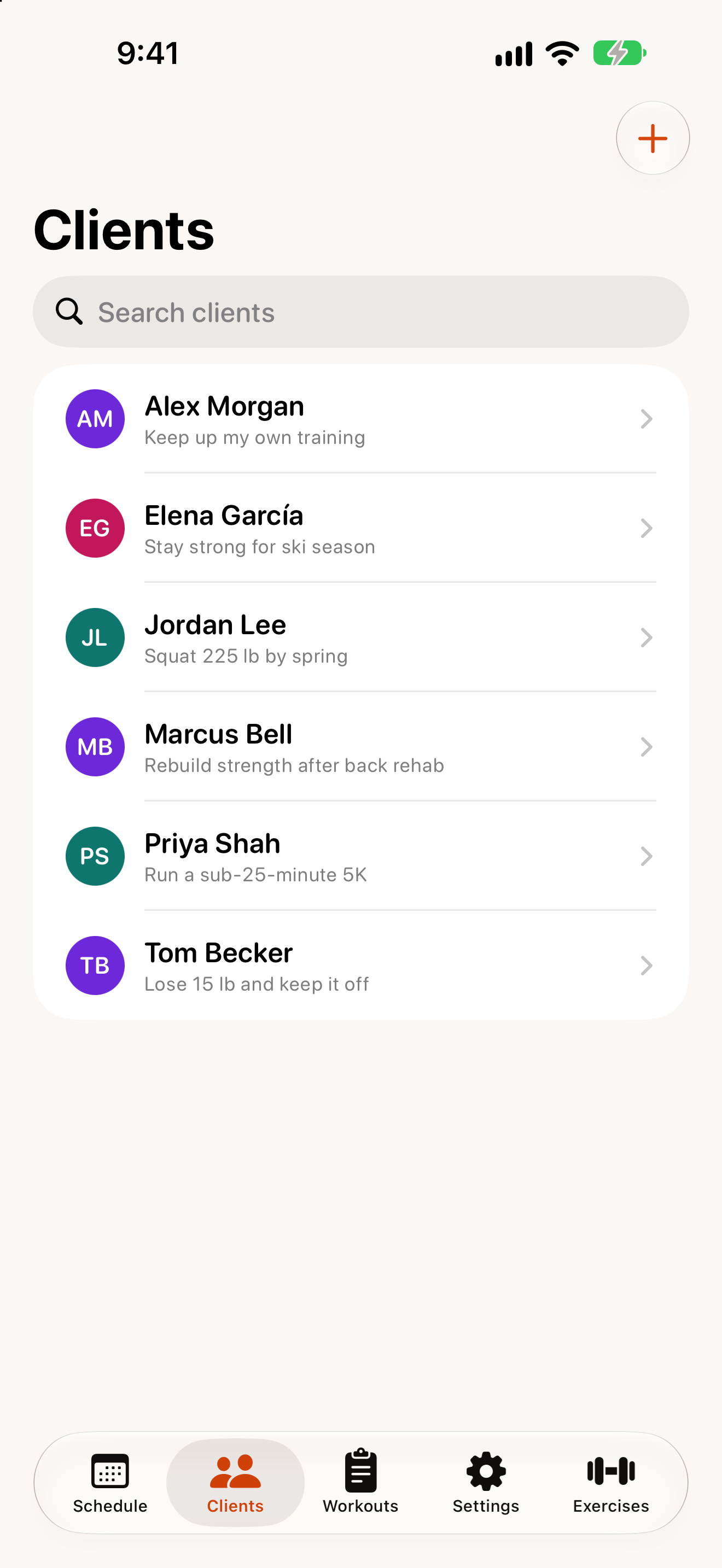
Add a client
- Open the
Clientstab and tap + (Add). - Fill in the client’s name and mobile phone number. Everything else is optional:
- Training: primary goal and any injuries or limitations.
- Profile: date of birth, occupation, training history and availability.
- Emergency contact and Physician: name, relationship and phone.
- Notes.
- Tap
Save.
Rackside then asks whether to start intake for the new client. Tap Start intake to do it now, or Later to do it from the client’s page another time.
Track your own training
Tap Add yourself on an empty Clients list (or Add yourself as a client on first launch) to create an About You profile. It’s marked “(You)” and works like any other client.
Guided intake
The intake flow takes a new client through everything you need before training, one step at a time:
Choose sections— pick what to include: health screening, waiver, measurements, Overhead Squat and Single Leg Squat. The profile is always included.- Profile — contact and background details.
- Health screening — see Health screening.
- Waiver — send the liability waiver now, or skip and send it later.
- Measurements and Movement — the assessment.
Review— a summary of what was recorded.
Use Next and Back to move between steps, and Done to finish. Steps you’ve already moved past are saved, so you can stop part-way and finish later from the client’s page.
To start intake for an existing client, open them and tap More actions › Start intake.
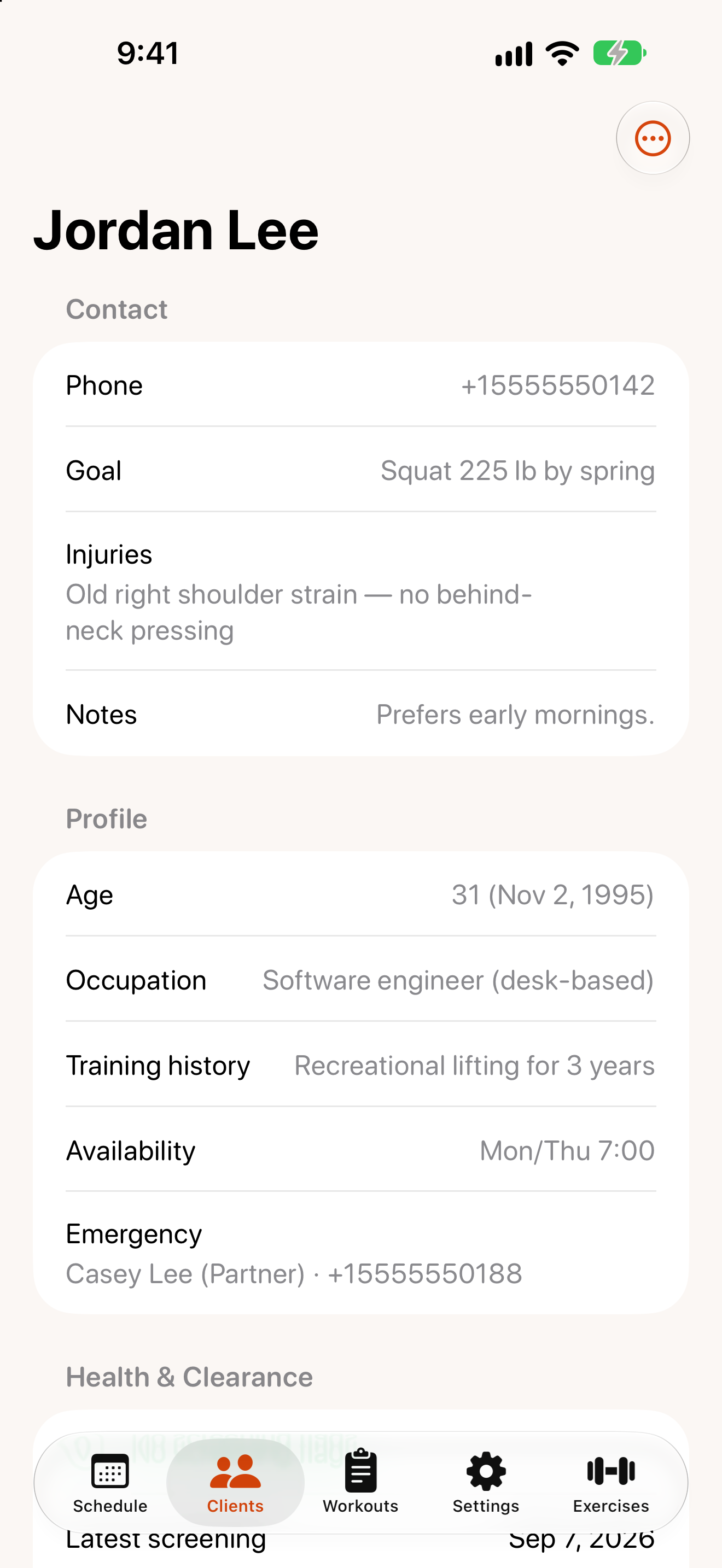
A client’s page
Tap a client to see:
- Contact and Profile details.
- Health & Clearance — the latest screening and whether medical clearance is recommended. Rackside reminds you when a screening is more than 12 months old.
- Waiver status and history.
- Assessments, newest first.
- Upcoming Sessions and Recent Sessions — tap one to open it.
- Progress Reports —
View progress.
Tap More actions (the ⋯ button) to Edit the client, Start intake, or Archive them. Archived clients are hidden from your list; open an archived client to unarchive them.
Find a client
Pull down on the Clients list and type in the search field to filter by name.