Rackside
Scheduling sessions
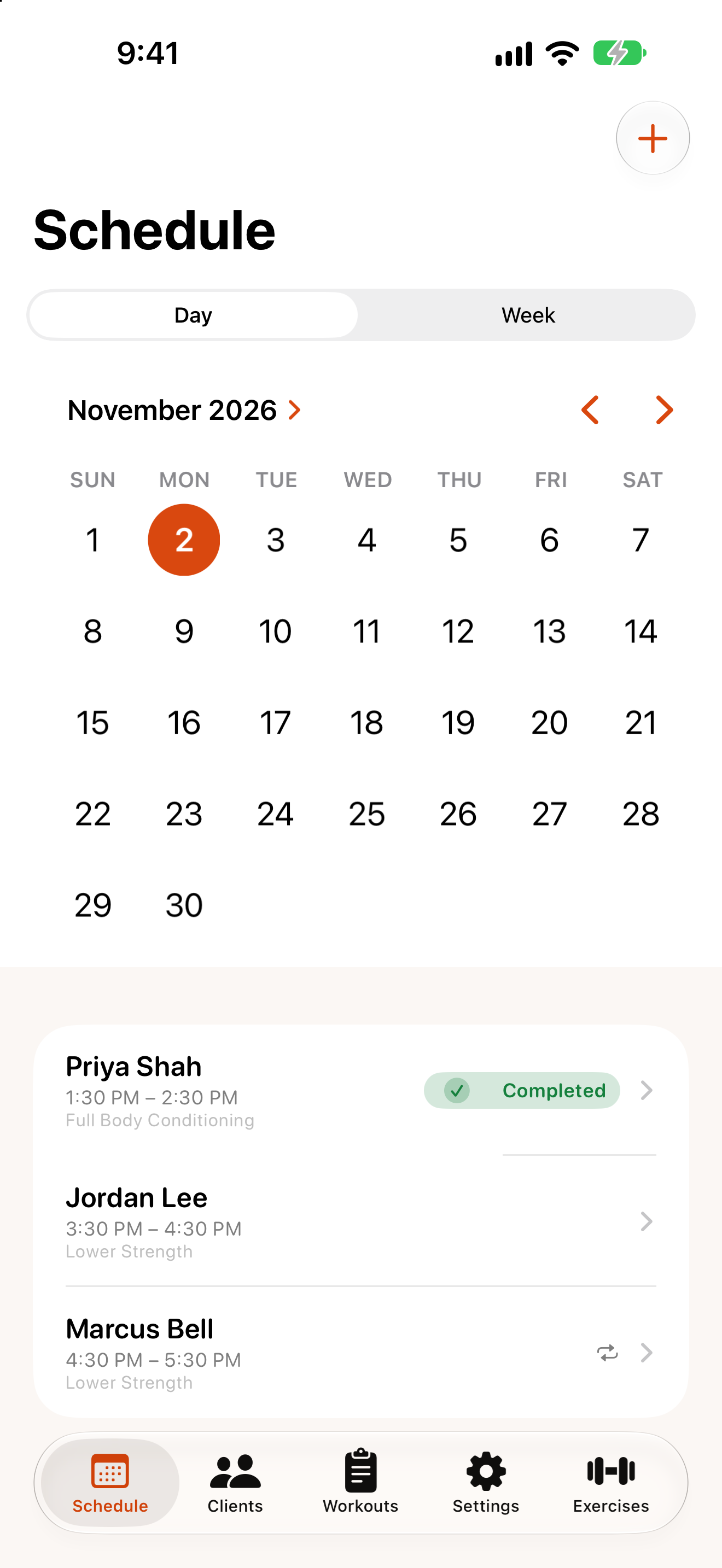
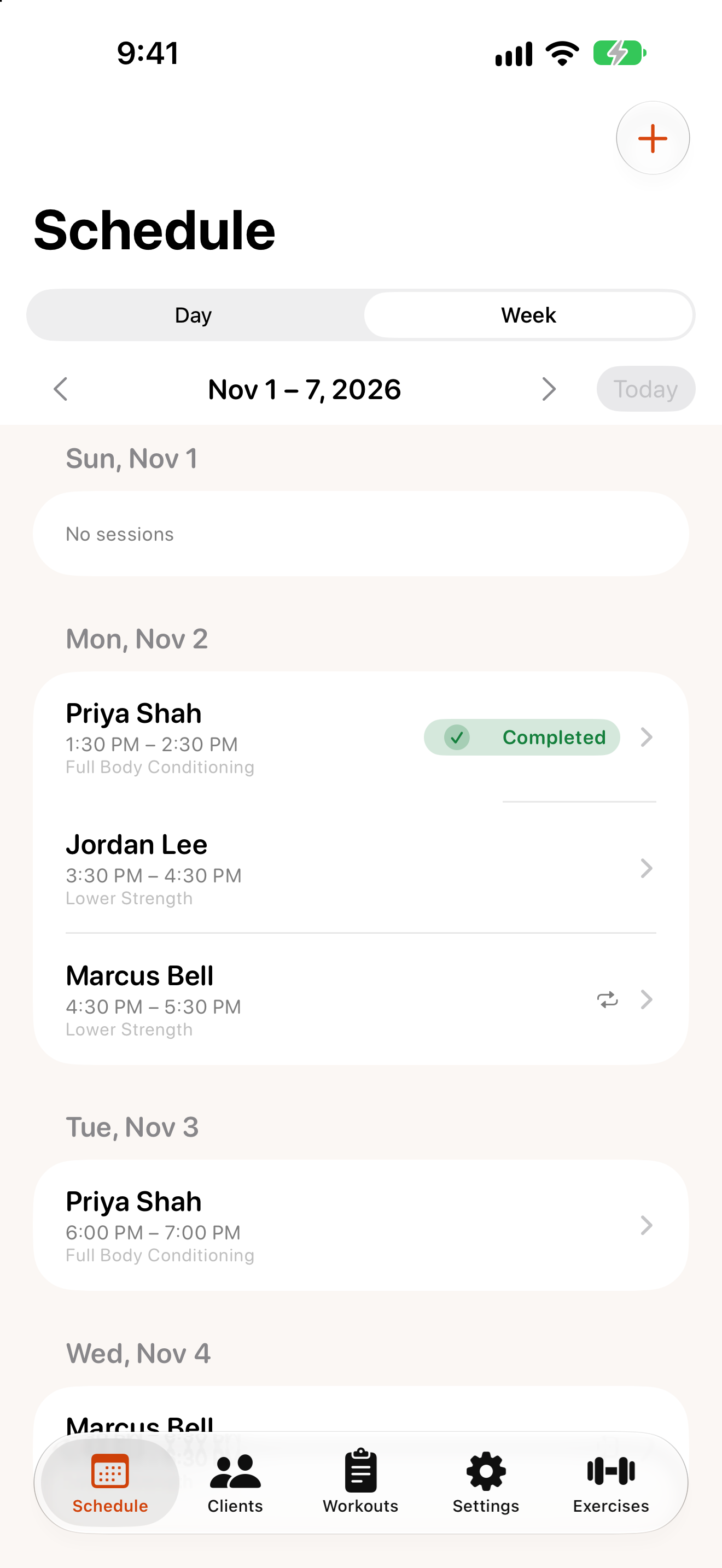
Day and week views
At the top of the Schedule tab, switch between Day and Week.
- Day: pick a date on the calendar to see that day’s sessions.
- Week: see the whole week. Use
Previous weekandNext week(the arrows) to move, andTodayto jump back.
Rackside remembers which view you used last. Each session shows the client, time, workouts and status; a ↻ icon means it repeats weekly.
Schedule a session
- Tap +.
- Choose the client, the start time and the duration.
- Under Workouts, tap the workout templates for this session.
- To repeat it, turn on
Repeats weekly, choose the days, and set how many weeks. - Add any notes.
- Turn on
Add to iPhone calendarif you want it in your calendar. (It goes to your default calendar, which can be Google Calendar if that’s your default account.) - Tap
Save.
Rackside reminds you 24 hours and 1 hour before each session, if notifications are allowed.
Change, cancel or delete a session
Open the session and tap ⋯: Edit session or Delete session. To cancel it but keep it in the history, tap Cancelled on the session screen.
For a repeating session, Rackside asks which sessions to change:
This session onlyThis and following sessions
Your calendar is updated to match.